Crypto Wallet Setup
This post explains how to set up a crypto wallet for self-custodial storage of your cryptocurrencies in under 10 minutes.
The setup is simple and without unnecessary fuss:
- no registration
- no video identification
- no setup fees
All you need is your smartphone.
Self-Custody
In this context, self-custody means that you will be in possession of the private keys to your digital assets.
This is not the case with many crypto platforms such as Bitpanda, Coinbase, Binance, or Boerse Stuttgart Digital Exchange. There, you are provided with a wallet address. However, you do not control the associated private keys; the platform does.
This can be compared to a situation in which a company certifies that you own gold coins in a bank safe-deposit box. But you would not hold the keys to your box; only the company would. Whether that is a good idea is something everyone must decide for themselves.
A well-known rule of thumb in the crypto scene says:
Not your keys, not your coins.
What a Wallet Does
A crypto wallet is essential for managing crypto assets. It is the central hub for all further activities involving cryptocurrencies, for example:
- sending or receiving from wallet to wallet
- buying or selling on a digital marketplace
- investing or lending
With both crypto platforms and wallets, make sure that they provide this room for action. In addition, a wide range of current currencies should be usable.
Setting Up a Crypto Wallet
The fastest and easiest way to set up a crypto wallet is by installing an app on your smartphone. There are countless crypto wallets. In this introduction, all steps are shown using the Exodus Wallet. It is therefore recommended to start with this wallet. Later, you can try other wallets at any time and transfer your assets. At the end of this post, alternative wallets are listed.
Before continuing, please read the disclaimer.
Note regarding links marked :
These links are advertising links (affiliate links). If you purchase a product or enter into a contract through one of these links, we receive a commission from the provider. There is no additional cost to you.
The advertising links constitute commercial communications. They do not represent a personal recommendation, advice, or brokerage tailored to your individual circumstances.
Exodus
Is Exodus Movement, Inc. a trustworthy company? We would answer yes, because Exodus is a publicly listed company and is subject to the disclosure requirements of the U.S. Securities and Exchange Commission (SEC). That generally speaks in favor of transparency and a certain level of regulatory oversight. Nevertheless, users should keep in mind that being publicly listed does not automatically eliminate all business or technical risks, especially in the crypto sector.
- Exodus was founded in 2015 and has a clearly structured corporate setup: address, management, and other relevant information are publicly disclosed.
- The Exodus website regularly publishes investor information in its Investor Relations section. Financial reports and business figures can be found there.
- Exodus Movement, Inc. is listed on the U.S. stock exchange under the ticker EXOD.
During research and use of the Exodus wallet, support was contacted repeatedly over a longer period for various concerns. The responses were always timely, friendly, and helpful.
Summary of the Process
Set up your own crypto wallet in four steps:
- Download and install the Exodus Wallet via Google Play or the App Store
- Open or launch the Exodus Wallet
- Tap “Create Wallet” and wait until the app has finished loading
- Create a backup. This means writing down the Recovery Phrase used to restore the wallet’s private key.
Details of the Most Important Steps
Below, screenshots describe in detail how to set up a wallet.
Download the Exodus Wallet


See also:
General Use and Settings
The Exodus app has two main areas: the balance overview shown on the left and the main menu shown in the middle of the three screenshots. Dialogs open on the smartphone as sliding panels that can be swiped downward with your finger to close them again. The image on the right shows the dialog for language, currency, and other settings.
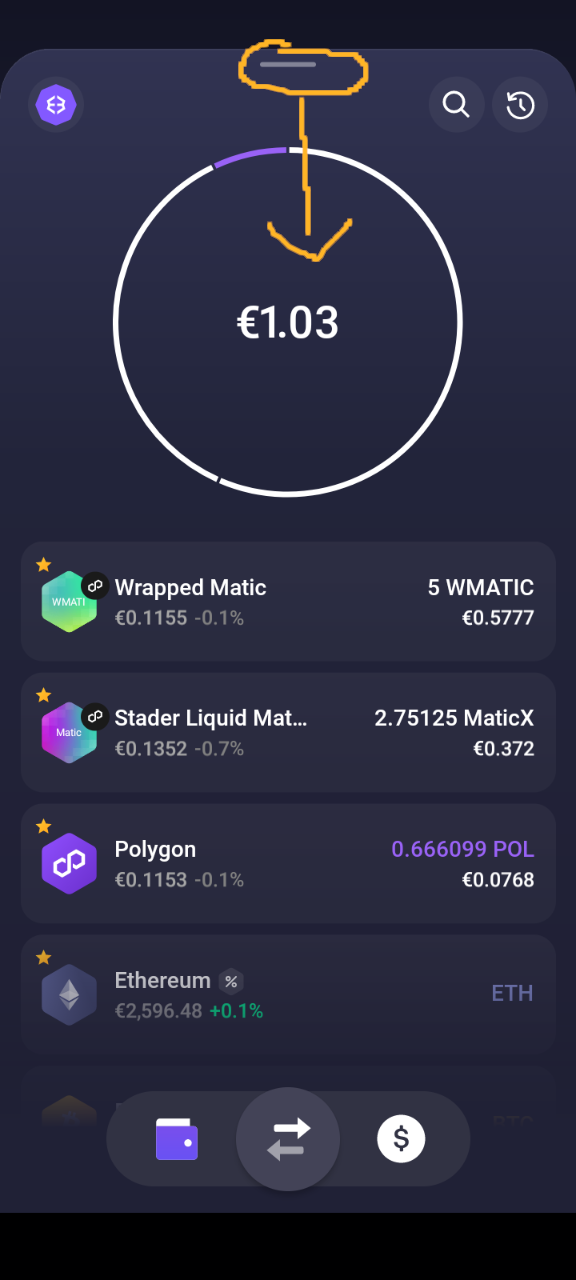
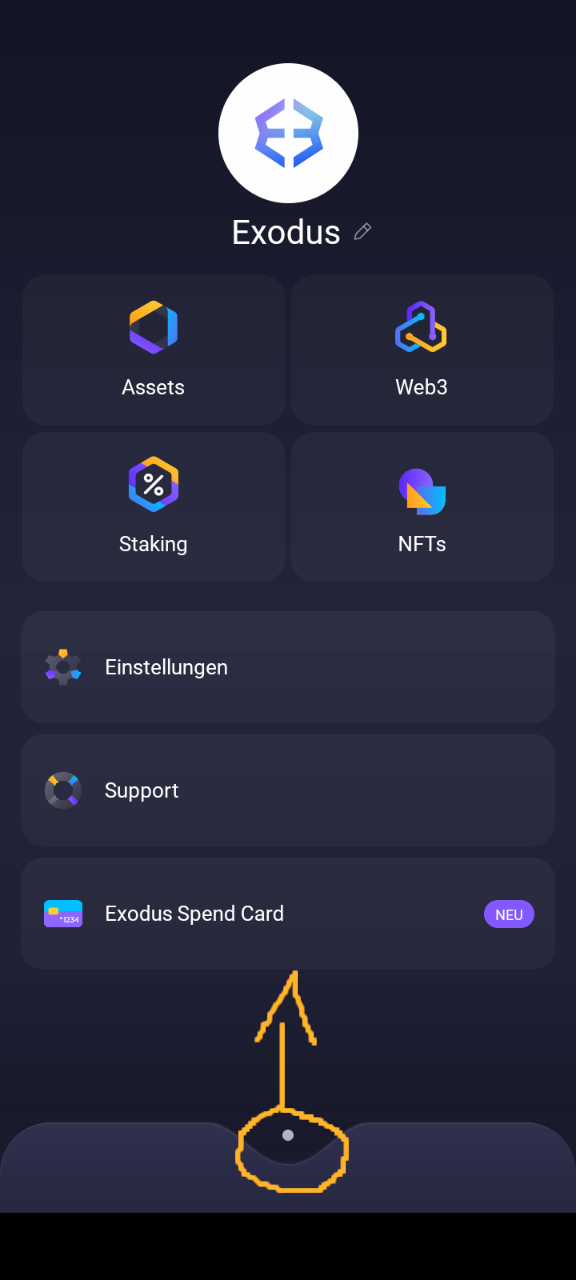
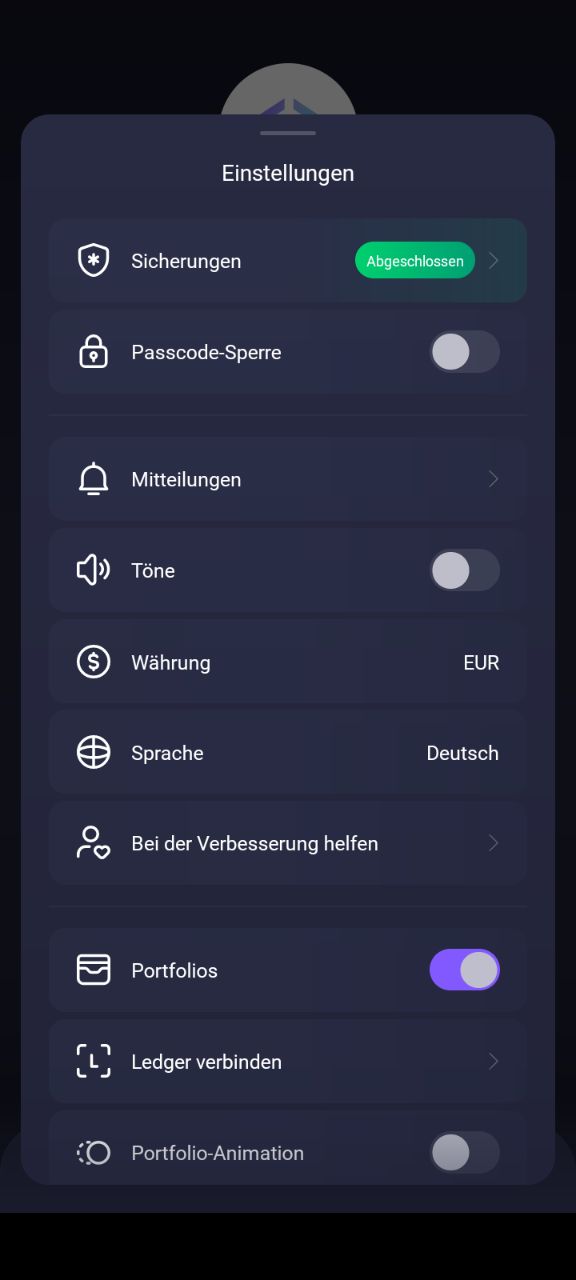
Smartphone Settings
The Exodus app uses a very dark overall design. It is therefore helpful to increase your smartphone’s brightness to improve readability. We also recommend temporarily setting the delay before the display locks to about two minutes in your smartphone settings. If the display locks too early, writing down the recovery phrase becomes more difficult.
Create an Exodus Backup
After the first launch, it is advisable to create a backup. This means writing down a sequence of twelve words, known as the Recovery Phrase.
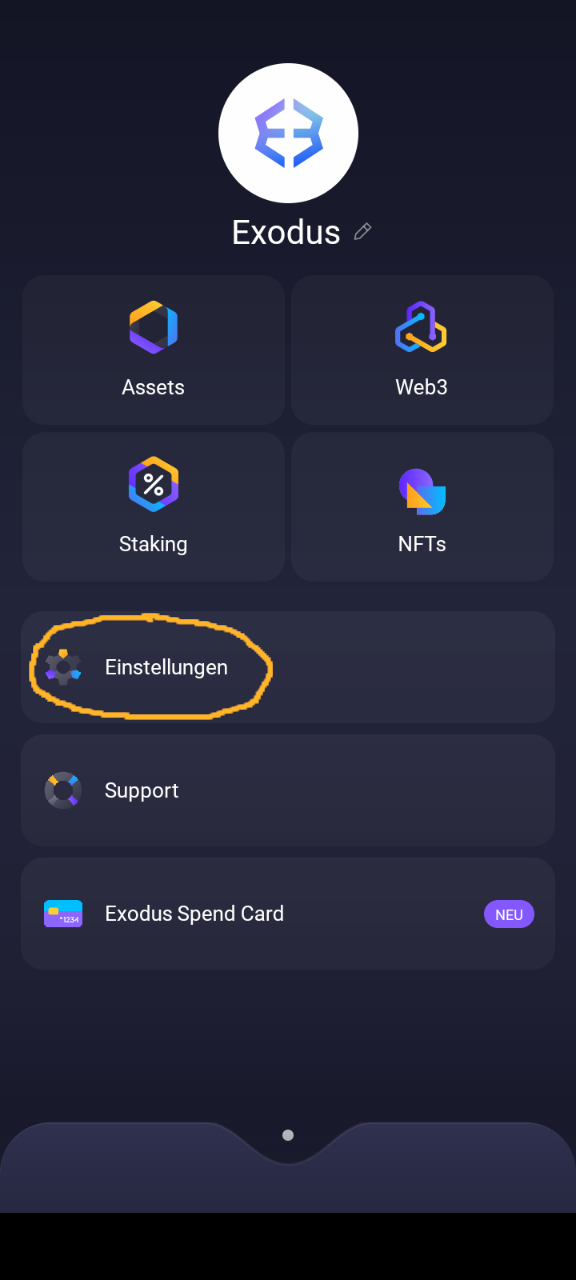
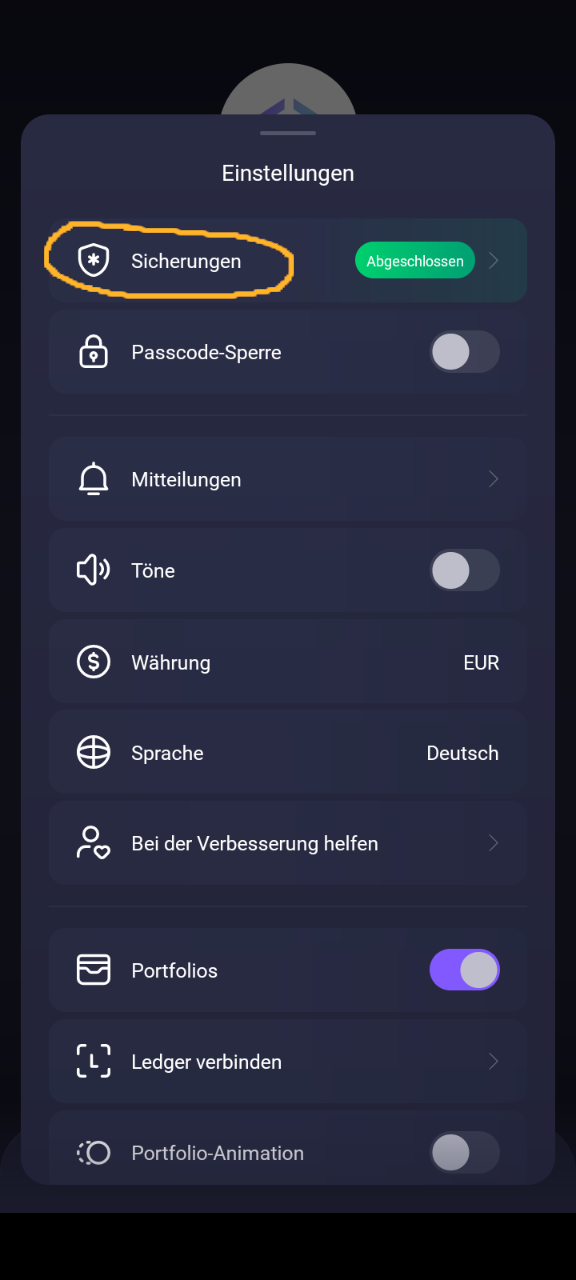
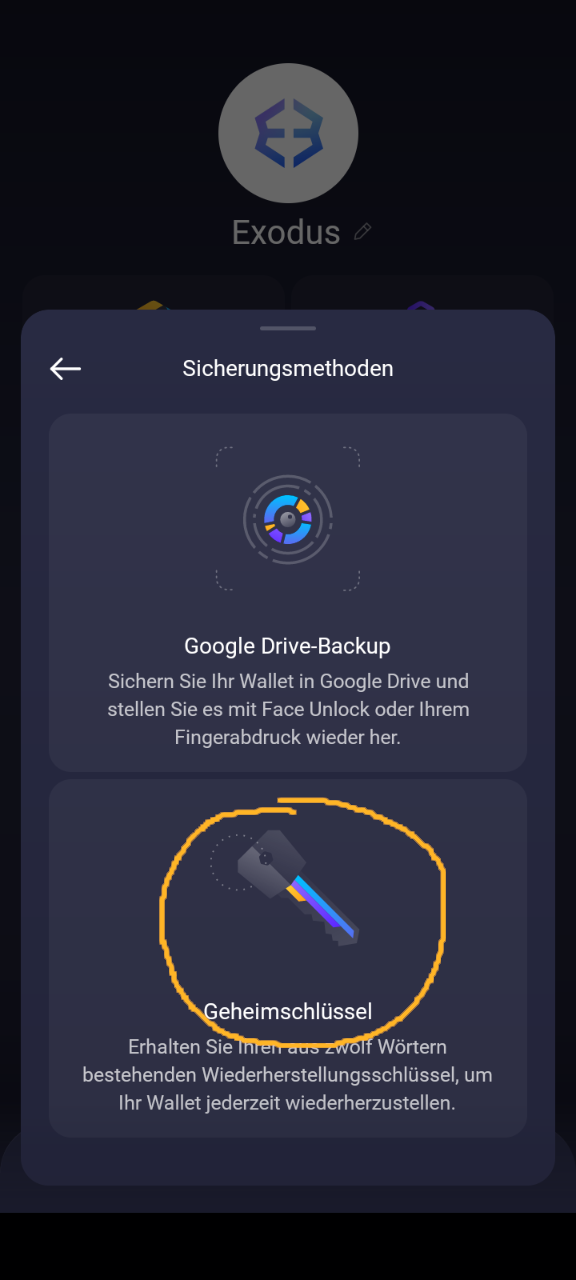
How to Create a Backup
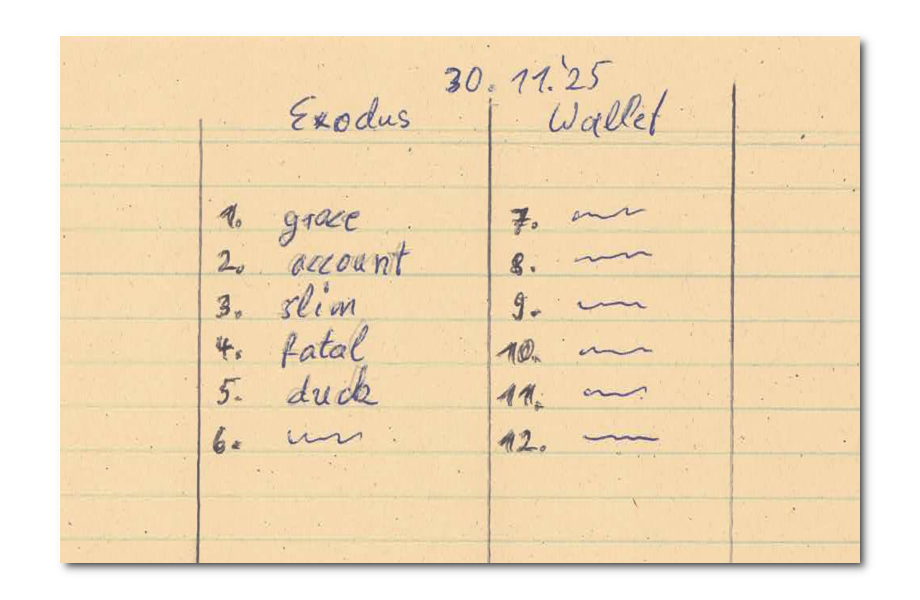
- Take a note sheet and a ballpoint pen
- Tap
Settings - Tap
Backups - Select
Secret Phrase - Create twelve numbered spaces on your note sheet as shown in the app so that you can write the words there.
- Follow the instructions and write down each word carefully
- Pay attention to the warnings!
- Check your copy. If everything is correct, tap Done.
- Fold your note sheet so that the words are covered. Keep the sheet in a dry, secure place.
See also
Important
The recovery phrase must never be shared with third parties. It must be kept strictly secret. Anyone who knows the recovery phrase can access your cryptocurrencies from anywhere and dispose of them completely – they do not need your smartphone or your wallet for that!
That is because the amounts are actually stored only on the blockchain, not in the wallet.
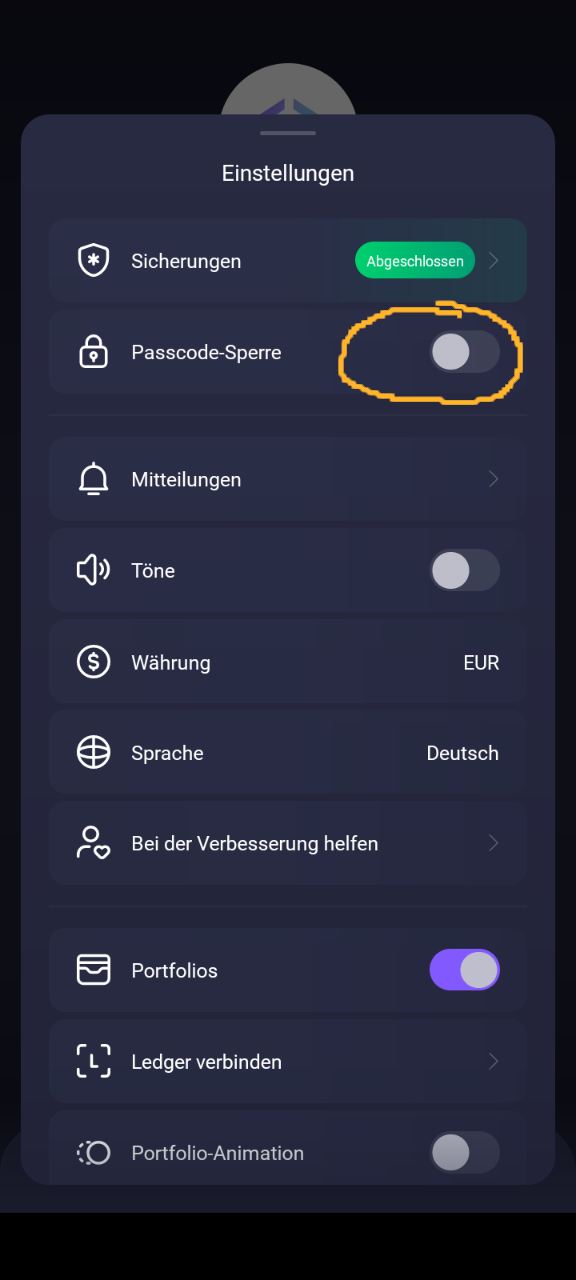
Protect With a Passcode
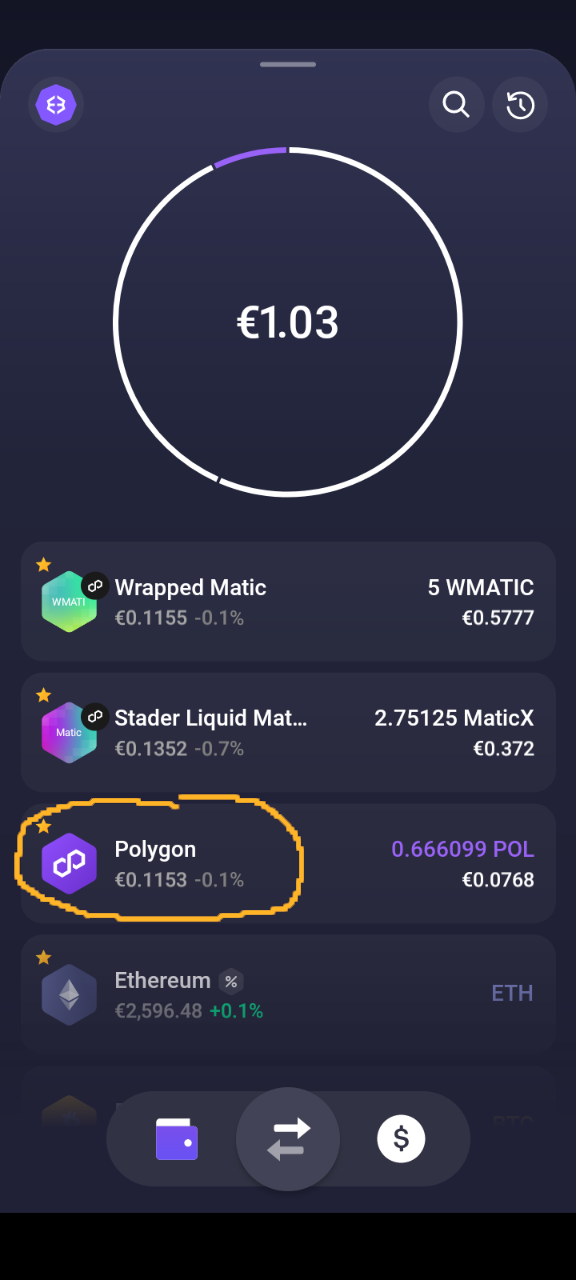
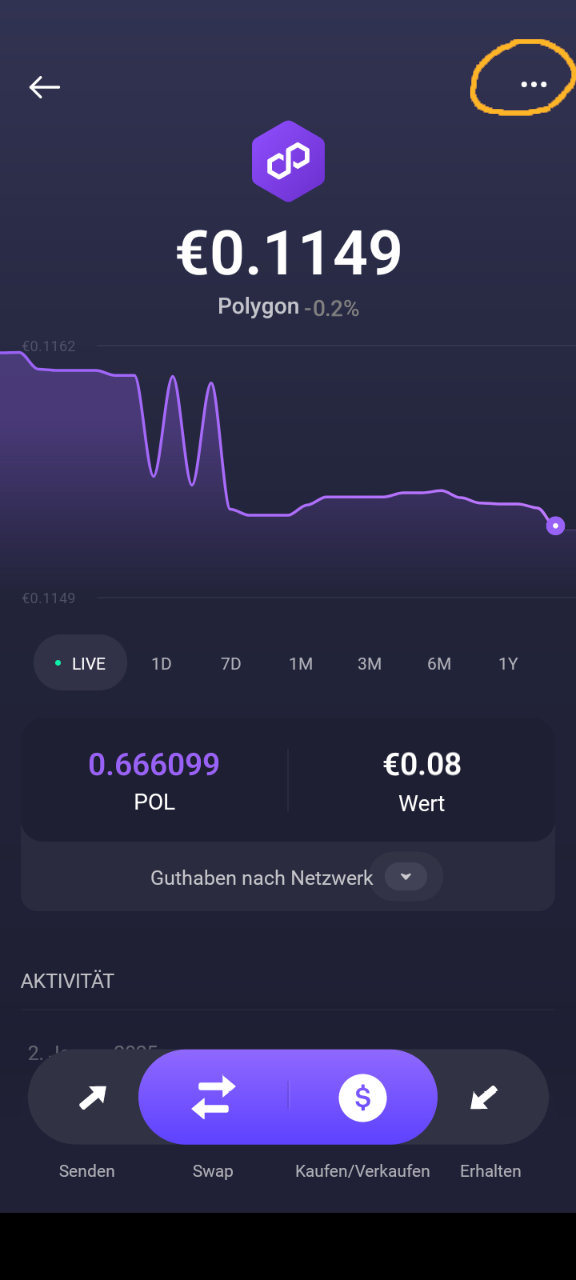
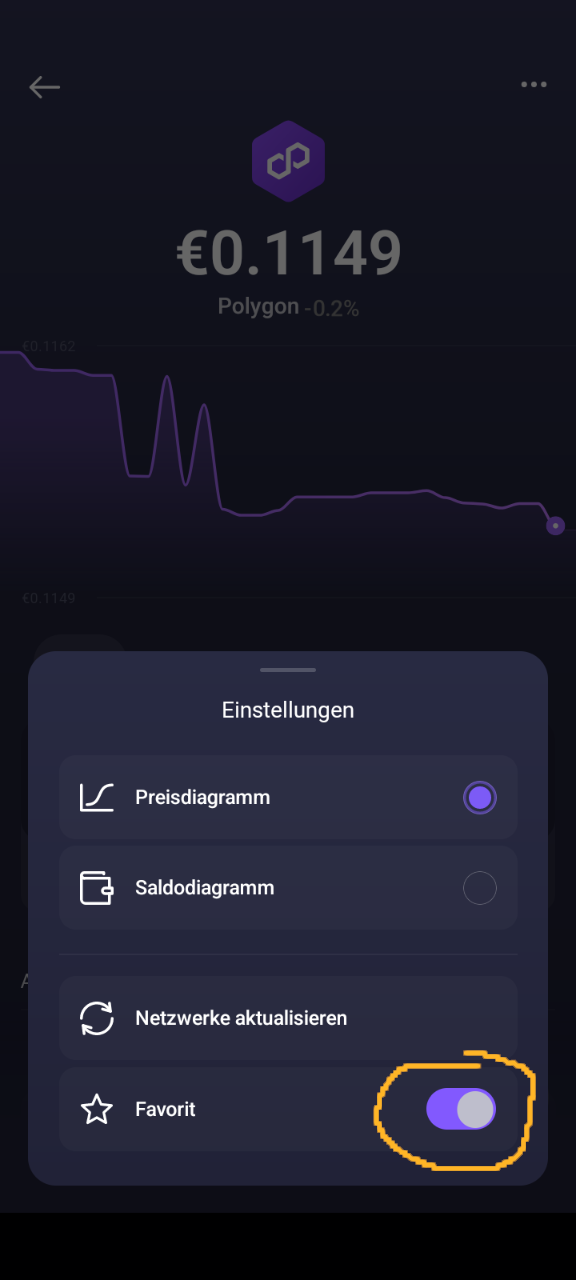
Set Favorites
In the final step, it makes sense to mark cryptocurrencies as favorites that you want to buy or trade often. According to the author’s recommendation, the following currencies or tokens should be added to favorites:
POL (formerly referred to as Matic)
MaticX
wPOL, wrapped POL (formerly called “Wrapped Matic” or wMatic)
Ether
Go to Assets in the main menu.
This opens a view containing a list of different cryptocurrencies.
At the top, you can also search for specific currencies.
Tick the currencies you want to use.
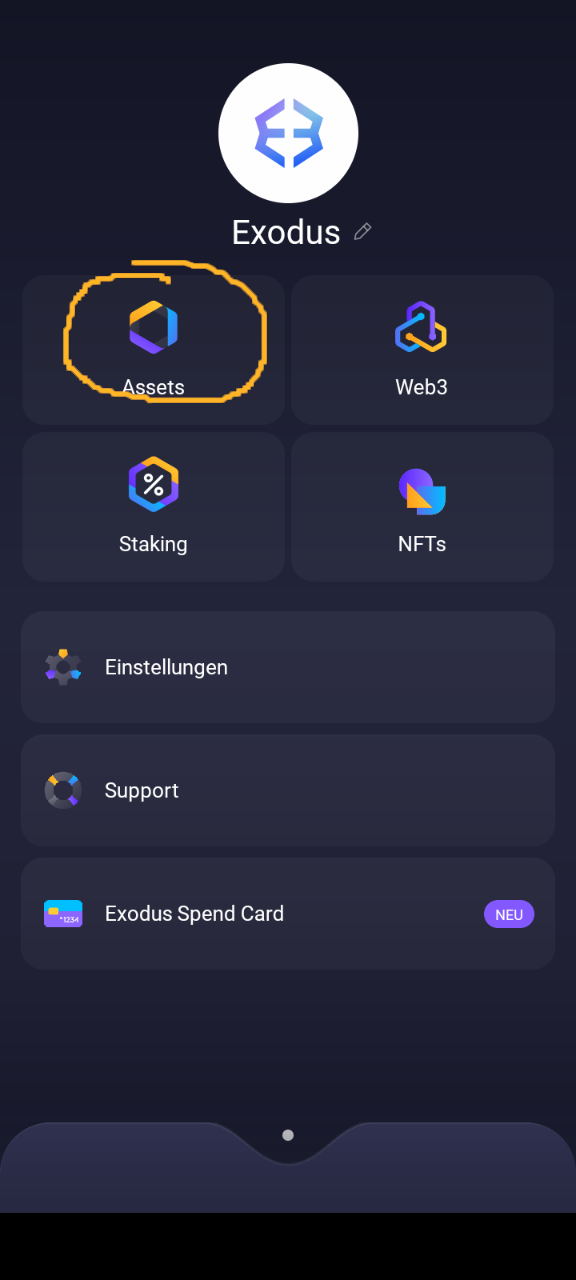
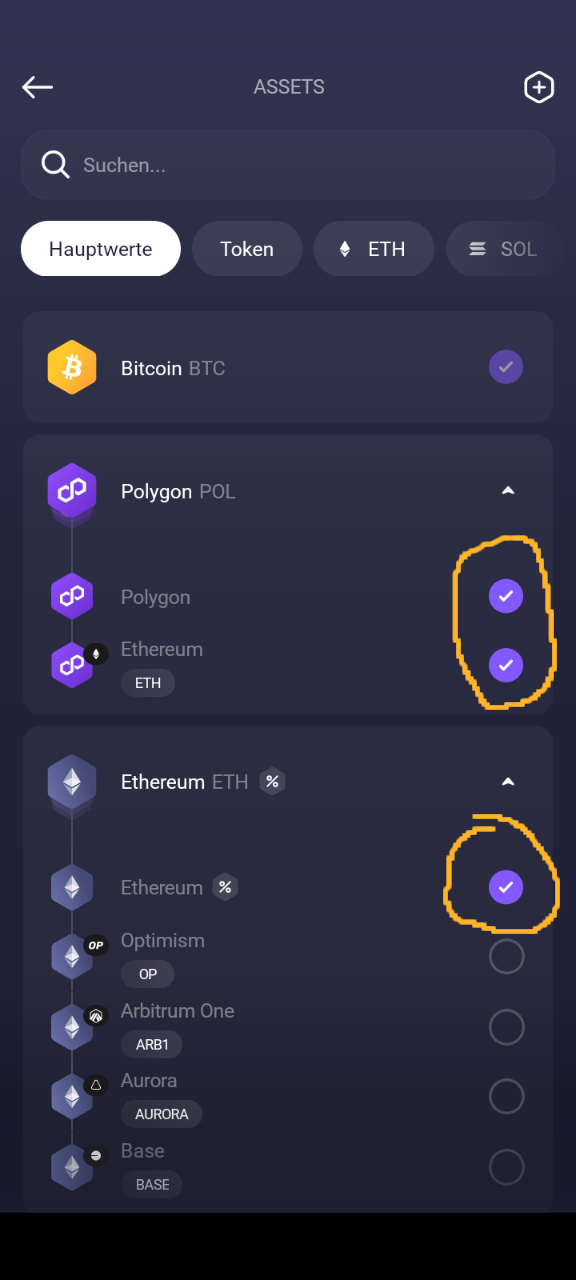
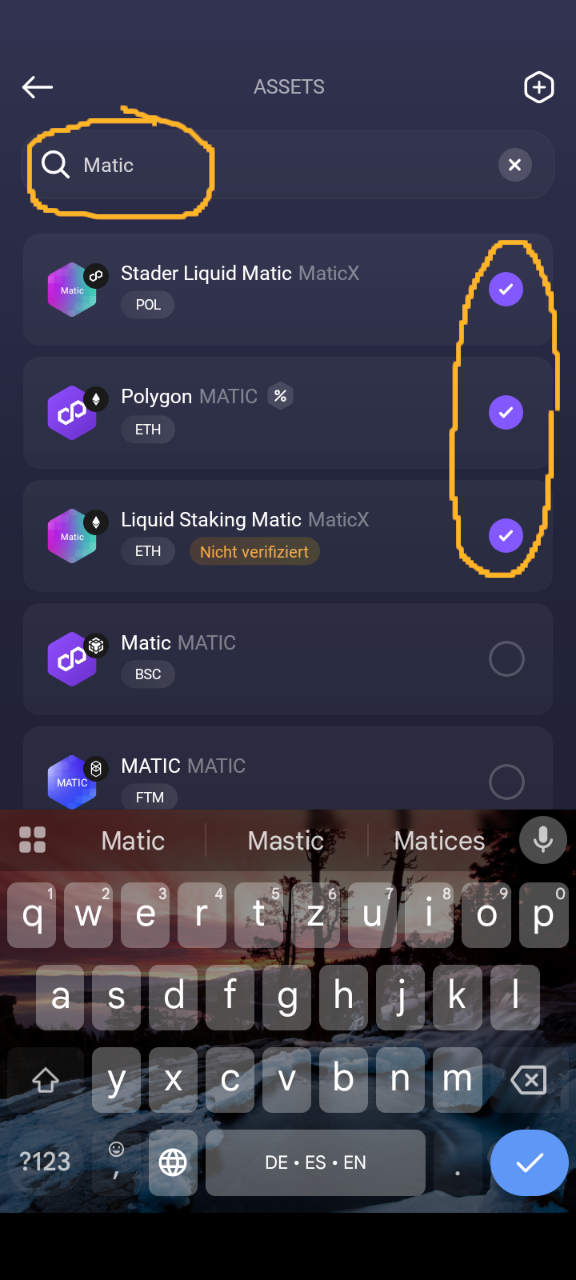
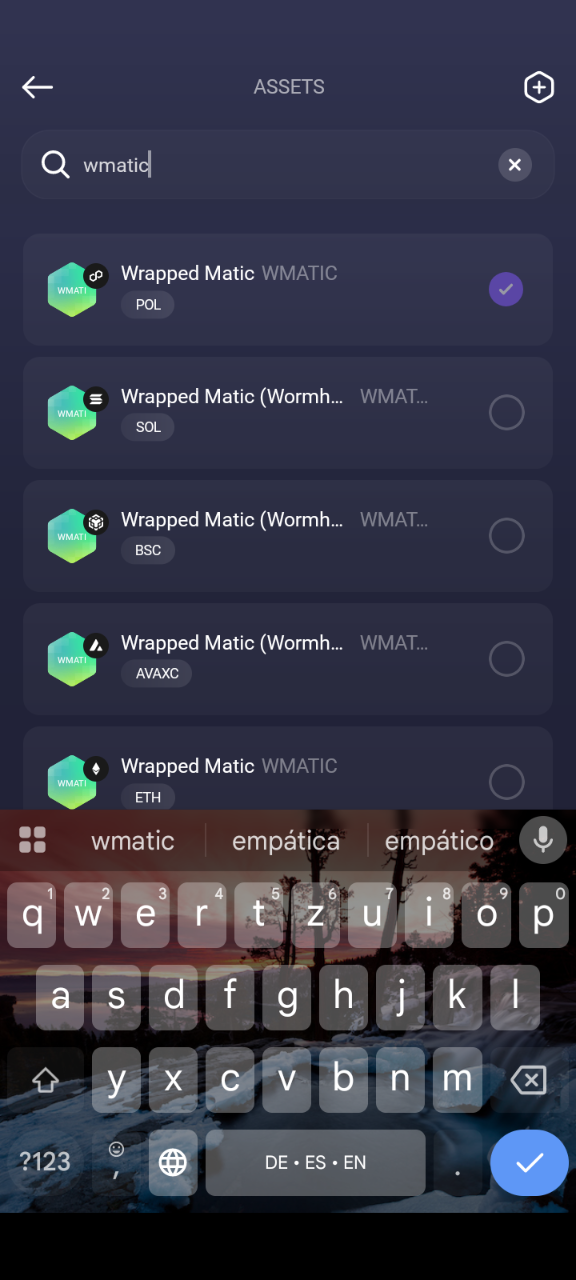
You will now see all selected cryptocurrencies in the balance overview. You can also choose favorites that should be displayed at the top of the overview.
Congratulations
You have just successfully set up your first crypto wallet and are now a fully capable member of the crypto community. As promised, it probably did not even take ten minutes, did it?
What Happens Next?
Your wallet is ready. You can now connect your wallet and use it to sign in on this website. This allows you to access our internal club area. There you will find many more articles that will accompany you on your journey through the crypto world.
We hope you enjoy it!
Security Notes

Do not respond to it. Do not visit the website given there and under no circumstances connect your wallet. It is a trick. Nobody is giving you tokens worth USD 10,000.
Alternative Wallets
- Ledger Hardware Wallet
- SafePal Hardware Wallet
- Trezor Hardware Wallet
- Bitget Wallet
- Trust Wallet
- Metamask
See also Wallet Guide